
How to Optimize a Google Business Profile for the Best Local Search Performance
Open your Google Business Profile in another tab and work through this guide field by field. You will see where to find each major setting, what belongs there, how to choose the right option, and how to confirm the public profile is correct.
By Vicin
This guide starts with an already claimed and verified Business Profile. Claiming disputes, suspension recovery, reinstatement, and Google's broader local ranking factors are separate topics.
The job here is narrower and more practical: make every applicable profile field accurate, useful to customers, and publicly correct.
A field is finished when it describes the real business, uses the correct Google setting, has been accepted where review is required, and appears publicly the way customers should see it.
That distinction matters because “complete” and “correct” are not the same thing. A profile can have every obvious field filled in and still contain the wrong category, stale hours, a broken booking link, an inappropriate public address, or services that the business no longer offers.
Audit the current profile before changing anything
Open the right management surface
| Management surface | How to open it | Best use in this workflow |
|---|---|---|
| Google Search | Sign into the managing Google Account and open the Business Profile. | Convenient for working through detailed profile fields in a browser. |
| Google Maps app | Open Maps → Business → Edit profile. | Useful for mobile management, photos, and checking the profile while at the location. |
| Business Profile Manager | Sign into Business Profile Manager. | Useful when many locations need controlled or bulk updates. |
Google does not expose every control to every profile. Category, business type, region, device, and management surface can affect which options appear. The absence of a feature is not automatically an optimization problem.
Confirm that you control the existing profile
Search for the business before creating anything new. If the correct unverified profile already exists, claim that profile. If another authorized user controls the verified profile, request access rather than creating a replacement listing.
Record what customers see now
Open the customer-facing profile separately and capture the current state:
- Business name and categories
- Address, map pin, or service area
- Regular and special hours
- Phone number and website
- Booking, menu, ordering, or other action links
- Description and attributes
- Services or products
- Photos and videos
- Social profiles when available
- Recent posts
- Review-request link and recent reviews
This pre-state makes later quality assurance much easier and prevents unnecessary rewrites of fields that are already correct.
Fix problems in the right order
- Identity: business name and real business model.
- Classification: primary and additional categories.
- Core customer information: location, hours, phone, and website.
- Offerings and actions: services, products, booking, menu, ordering, and similar links.
- Presentation: description, attributes, media, posts, and reviews.
- Quality assurance: public checks, Google updates, and Performance measurement.
If the phone number is wrong, fix it before polishing a post. If the category is wrong, correct it before building a detailed Services section around the wrong classification.
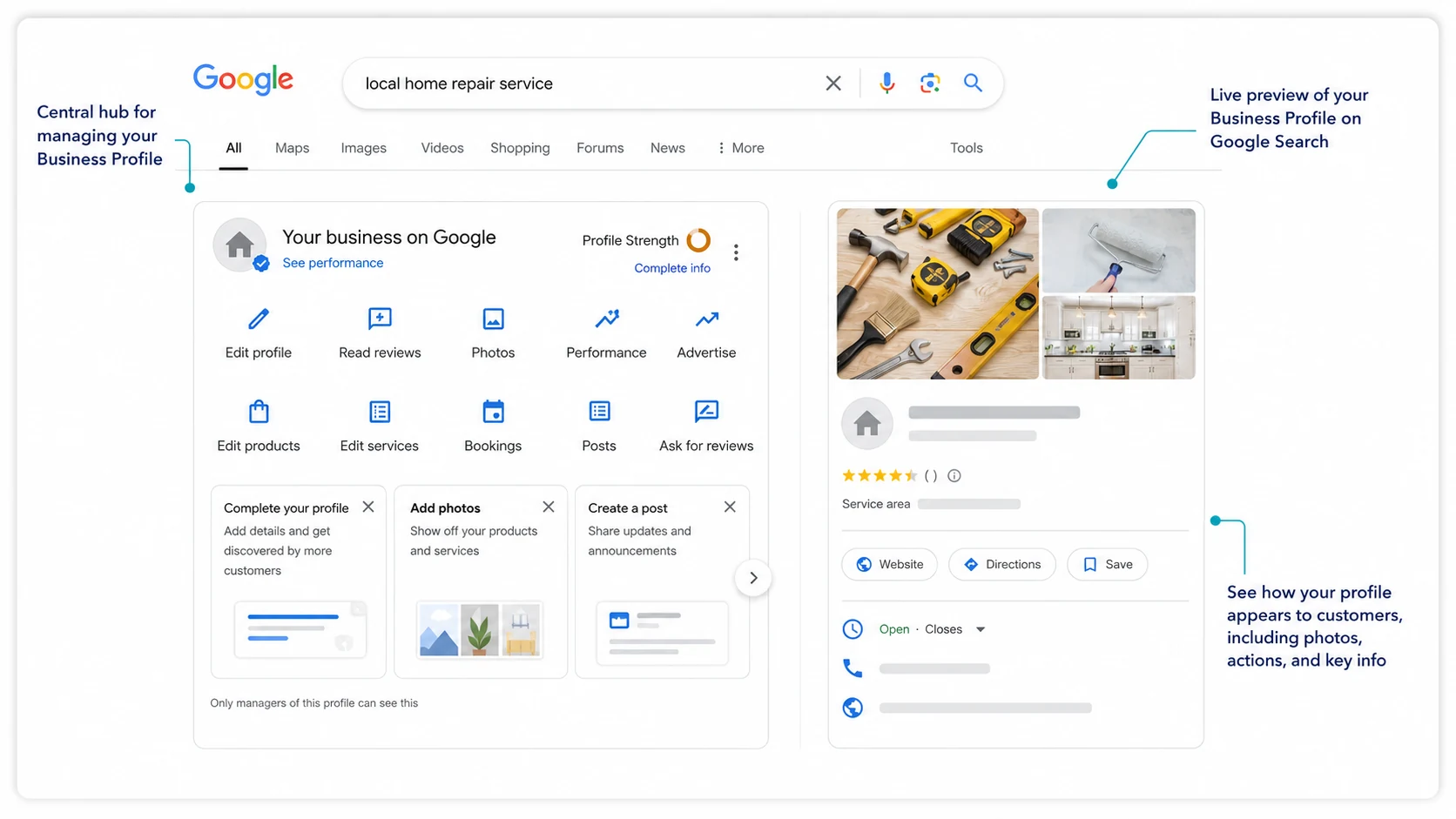
Set the business name and categories before the supporting fields
Business name
Edit profile → Business name
Enter: The name customers encounter in the real world.
Check: Compare it with established signage, the website, stationery, and normal branding.
Avoid: Adding services, neighborhoods, cities, slogans, phone numbers, or promotional language that is not genuinely part of the business name.
Verify: Save the edit and compare the public profile with the business's established branding.
Primary and additional categories
Edit profile → Business category → Edit
Primary category: Choose the most specific available category that describes the main business.
Decision rule: Finish the sentence, “This business is a _____.” The answer should describe the business itself.
Additional categories: Add only other categories that describe genuine additional business types. Google currently allows up to nine additional categories, but nine is a limit rather than a target.
Verify: Reopen the business category and confirm the intended option appears in the primary position.
Make category changes because the real business classification needs correcting, not as a routine experiment. After saving, check whether Google asks the business to verify again before considering the change complete.
| Field | Question it answers | What belongs there |
|---|---|---|
| Primary category | What is this business mainly? | The best available classification for the core business. |
| Additional category | What other business types genuinely apply? | Other real business classifications. |
| Service | What can the customer buy or book? | Actual customer offerings. |
A service does not need to become an additional category simply because the business offers it.
Configure the address, map pin, and service area for the real business model
Storefront
Edit profile → Location → Business location → Edit
Enter: The complete legitimate address customers can visit.
Check: Include a suite or floor only when it is part of the real address. Correct the map pin if it points to the wrong customer entrance or location.
Verify: Open the public profile and test Directions.
Service-area business
Edit profile → Location → Business location → Edit
Address: Do not display the street address when customers are not served there.
Edit profile → Location → Service area → Edit
Enter: Cities, postal codes, or other supported areas the business genuinely serves.
Verify: Confirm the street address is hidden and the intended service areas appear.
Hybrid business
Use: A legitimate customer-facing address plus a real service area when customers can visit the location and the business also travels or delivers.
Verify: Test Directions, review the displayed hours, and confirm the service area matches real operations.
Google currently allows up to 20 service areas and advises that the overall area should generally not extend beyond about 2 hours of driving time from the business base, although larger operating areas can be appropriate in some cases. Approved service-area edits can take up to 48 hours to appear.
Add nearby areas only when served, because Google's distance factor uses the searcher's location. Selecting additional cities does not turn them into additional physical business locations.
After the location setup, prioritize different fields by business type
| Business type | Next profile areas to prioritize |
|---|---|
| Storefront | Hours, Directions, exterior and interior photos, applicable attributes, and visit-related action links. |
| Service-area business | Services, phone, website, representative work photos, review workflow, and public-profile QA. |
| Hybrid business | Complete both the customer-arrival checks and the off-site service checks that apply. |
If the same business moves, update the existing profile rather than creating another profile simply because the address changed. A verified business moved to a new address may need verification again. Recheck the address, map pin, service-area setting, and public profile after the move.
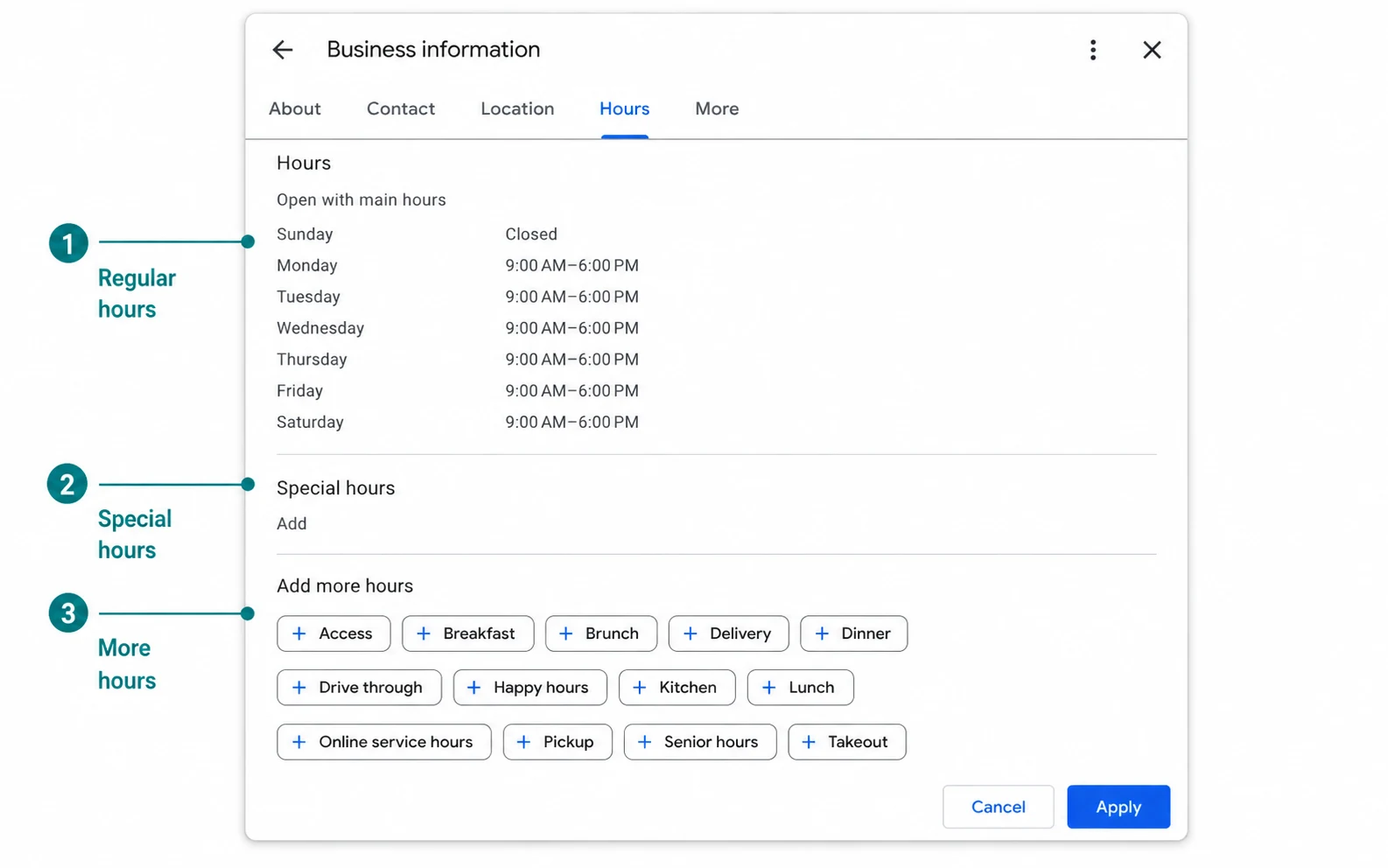
Use regular hours, special hours, and service-specific hours for different jobs
Regular hours
Edit profile → Hours → Business hours → Hours → Edit
Enter: The normal hours customers can use the business.
A business that closes and reopens during one day can use two time periods. A location open continuously can use the 24-hour setting.
Verify: Check each weekday on the public profile.
Special hours
Edit profile → Hours → Special hours → Edit
Use for: Holidays, special events, and short temporary schedule changes.
Verify: Check the affected date publicly and confirm the temporary schedule overrides the normal hours correctly.
More hours
Edit profile → Hours → Add more hours
Use for: Applicable service-specific schedules such as delivery, pickup, takeout, or other available hour types.
Verify: Confirm the additional hours appear under the correct service label.
Which one should you edit?
A normal weekly schedule belongs in regular hours. A temporary exception belongs in special hours. A separate service schedule belongs in More hours when Google provides that option.
Make every phone, website, booking, menu, and social action lead to the right place
Phone
Edit profile → Contact → Phone
Enter: A number that reaches the intended business or location directly.
Verify: Call the public number from another device to ensure it reaches the correct destination.
Website
Edit profile → Contact → Website
Enter: The complete working URL for the business or the specific location represented by that profile.
Verify: Select Website from the public profile. Confirm that the page loads on mobile, represents the correct business, and does not redirect the customer to an unrelated page.
| Profile situation | Best starting destination |
|---|---|
| One business with one location | The main website or primary page that clearly represents that business. |
| Multi-location business with a dedicated location page | The page for that exact location. |
| Booking, menu, ordering, or reservation action | The dedicated action link where the customer can complete that task. |
| A narrow page for one service | Use it for an appropriate action or campaign rather than automatically replacing the profile's main Website destination. |
Booking, reservation, menu, and ordering links
Google Search → Booking, Food ordering, or Pickup and delivery
Google Maps → Edit profile → applicable transaction type
Enter: A direct page where the customer can complete the action they selected.
Verify: Test every public action and go far enough through the flow to confirm it works.
Social profiles
Edit profile → Contact → Social profiles → Edit
Enter: The official URL for each supported social account the business actively uses.
Verify: Open each displayed social link and confirm it points to the correct account.
Social profile controls are available only for supported profiles and regions, so their absence is not automatically an error.
Use the description, attributes, services, and products for different kinds of information
Business description
Edit profile → Description → Edit
Enter: A clear explanation of what the business is, what it provides, and useful facts a customer should know.
Useful content: Main offerings, relevant customer or location context, and factual differentiators.
Avoid: Links, temporary promotions, repeated city names, and keyword lists.
Verify: Read the public content from the business section and remove anything outdated or unsupported.
Attributes
Edit profile → More → applicable attribute group → Edit
Enter: Only attributes that accurately describe the current business.
Verify: Review the customer-facing profile and confirm every displayed factual attribute remains true.
Available attributes vary by category and location. Some customer-facing information can also come from Google user input rather than the business owner.
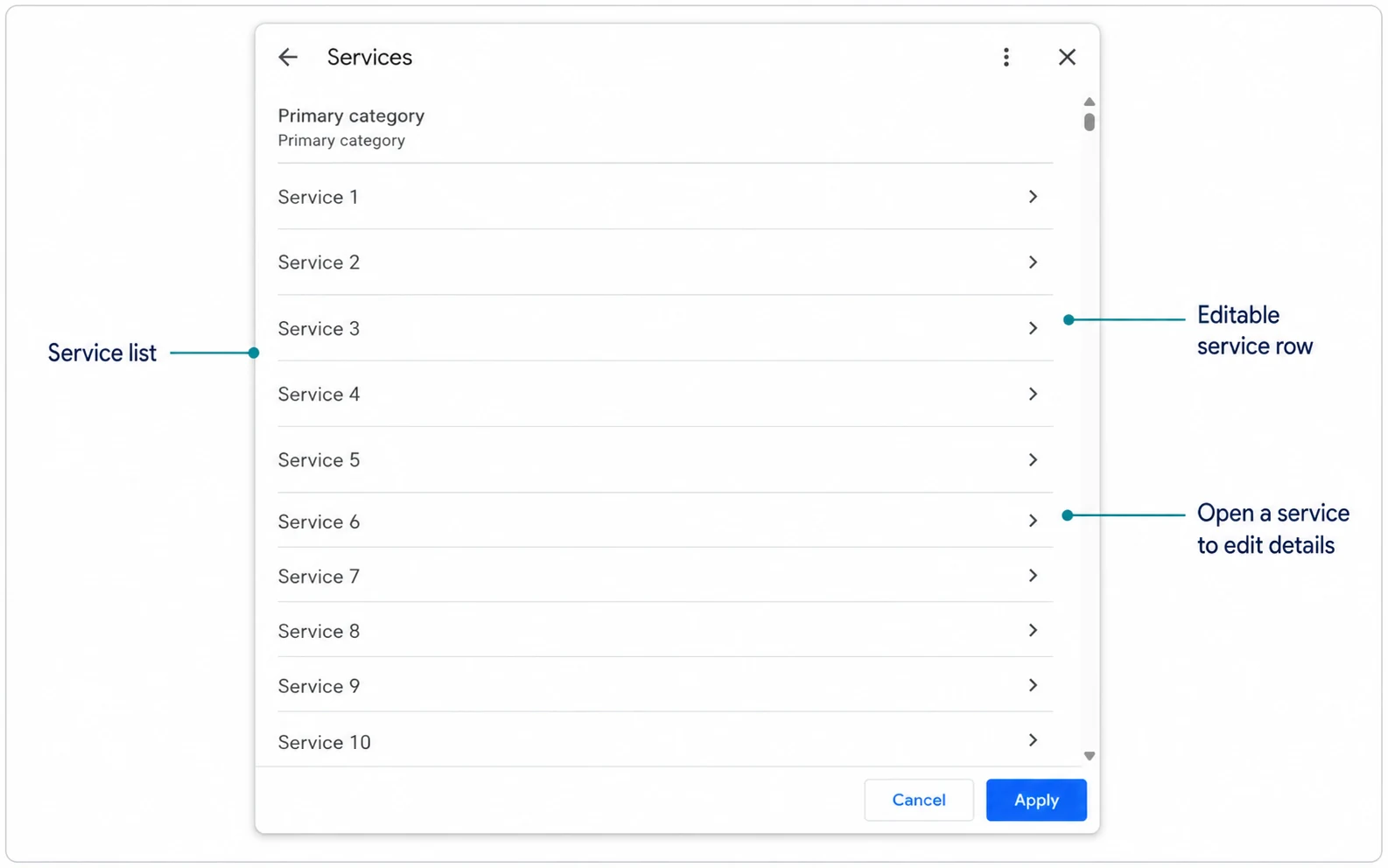
Services
Categories describe what the business is. Services describe what customers can actually purchase or book.
Business Profile → Edit services
1. Review suggested services. Select only the suggestions the business genuinely offers.
2. Add a real missing service. Use Add more services and Add custom service when the appropriate offering is unavailable.
3. Add useful details. Enter a description or price when the field is available and the information helps a customer choose.
4. Remove stale services. Delete offerings the business no longer provides.
5. Verify. Reopen the editor, then check the customer-facing Services section where Google displays it.
Use the normal customer-facing service name. A useful service description can explain scope, an important limitation, who the service applies to, or a meaningful option. Do not repeat the same general business description under every service.
Products
Business Profile → Edit products, when available
Use for: Current physical products sold by eligible businesses.
Enter: Accurate product information and representative product media.
Verify: Open the public profile and confirm that current products display correctly.
Products, menus, bookings, attributes, social links, and other controls can depend on category, profile type, region, or management surface.
Use photos, videos, and posts to keep the customer-facing profile useful
Photos and videos
Build a gallery that helps customers recognize and evaluate the real business. Useful media can include the logo, exterior, interior, products, completed work, equipment, team, and other category-relevant subjects.
| Media requirement | Current Google guidance |
|---|---|
| Photo format | JPG or PNG |
| Photo file size | 10 KB to 5 MB |
| Recommended photo resolution | 720 × 720 px |
| Minimum photo resolution | 250 × 250 px |
| Video duration | Up to 30 seconds |
| Video file size | Up to 75 MB |
| Video resolution | 720p or higher |
Media should be in focus, well lit, and representative of what customers will actually encounter.
Google Maps app → Business → More → Add photo → select media → Done → Post
After upload, check the status. Live media can appear publicly. Pending media is still processing or awaiting a decision. Not approved media is not being shown.
Photos and videos can take 24 to 48 hours to appear. Selecting a cover photo also does not guarantee that Google will always show that image first.
Add media when the location, products, services, team, or customer experience changes, or when an important part of the business has no useful visual coverage. File naming or embedded location metadata should not become the center of the workflow.
Posts
Business Profile → Posts → Add post
Use posts when the business has timely customer information:
- Updates: useful current business news or information
- Offers: real promotions with the required details
- Events: real events with defined dates or times
Give each post one clear purpose, accurate dates, relevant media when useful, and a working destination when it includes a call to action.
Verify: Check the status after publishing. A post that remains Pending or is Not approved is not the same as a post that is publicly Live.
There is no reason to manufacture posts only to satisfy an arbitrary daily or weekly activity schedule.
Create a repeatable review workflow and know what to do when a review problem appears
Create the official review link and QR code
Business Profile → Read reviews → Get more reviews
What to do: Copy Google's review link for digital requests. On a computer, the available workflow can also provide a QR code for printed materials.
When to use it: After a real customer transaction, appointment, delivery, service, or other completed experience.
Verify: Open the link outside the profile-management account and make sure it leads to the correct business.
Ask for an honest review without specifying a required rating or scripting what the customer should write. Do not offer free or discounted goods or services in exchange for posting, changing, or removing a review.
A simple process works: choose the normal completion point, send the official review link, ask for honest feedback, and record that the request was sent so the same customer is not repeatedly contacted.
Reply from the Business Profile
Business Profile → Read reviews → Reply
Reply when the response adds value. Address the specific point the customer raised, protect private information, and move account-specific disputes to a private channel when needed.
Report a review only when it violates policy
Business Profile → Read reviews → Report → select the applicable reason → Send report
A negative review is not automatically eligible for removal. Report it when the content violates Google's policies, not simply because the business disagrees with the rating.
Check the report in Google's Reviews Management Tool. If Google finds no policy violation, a reported review may be eligible for a one-time appeal.
If a legitimate review is missing or delayed
- Allow time for standard review checks; publication may be delayed by a few days.
- Check whether Business Profiles were recently merged, since merged reviews can also take time to appear.
- Confirm that the customer submitted the review to the correct profile.
- Document the reviewer, the approximate date, the previous review count, and any available screenshots.
- Contact Business Profile support if a legitimate review appears to have been removed in error.
Do not ask the customer to repost the same review repeatedly while the issue is still being investigated.
Check the public profile after every important edit
The editor is where you submit a change. The public profile is where you confirm the result.
Use the same QA sequence
- Save the edit.
- Check its status. Look for Accepted, Pending, or Not Approved where applicable.
- Open the public profile. Confirm the customer-facing value.
- Test the function. Call the number, open the website, request directions, or follow the action link.
- Record the final state. Keep the date and public value for important changes.
Google says profile edits are often reviewed quickly, but some can remain under review for up to 30 days. A saved field is not finished when the editor and customer-facing profile still disagree.
| Status | What to do |
|---|---|
| Accepted | Open the public profile and confirm the final value is correct. |
| Pending | Wait for review instead of repeatedly resubmitting the same change. |
| Not approved | Recheck the value against the real business and the field-specific rules before trying again. |
| Google-updated information | Investigate which version is accurate before overwriting the change. |
If Google changed business information
Google can update Business Profile information using sources such as user reports and licensed content. The editor can highlight Google-changed information and show an update notification.
- Open Edit profile and identify the changed field.
- Compare it with the real business information.
- Check the official website and other public sources the business controls for conflicting facts.
- Correct the Business Profile when Google's value is wrong, and correct owned sources when they are also outdated.
- Save the change and repeat the public-profile QA check after it is accepted.
Do not leave two controlled sources publishing different facts. If the official website says one set of hours and the Business Profile says another, correcting only one side leaves the conflict unresolved.
Some Google updates cannot be managed directly from the Business Profile. When the editor does not provide a workable correction path, use Business Profile Help rather than repeatedly submitting the same value.
Use Profile Strength as a completeness check
Business Profile → Profile strength
Profile Strength can surface missing information such as contact details, hours, description, media, or posts. Complete the items that genuinely apply to the business.
Do not enter inaccurate information just to make a completeness indicator look better. A profile can appear complete even when a customer action is broken or a public field is incorrect.
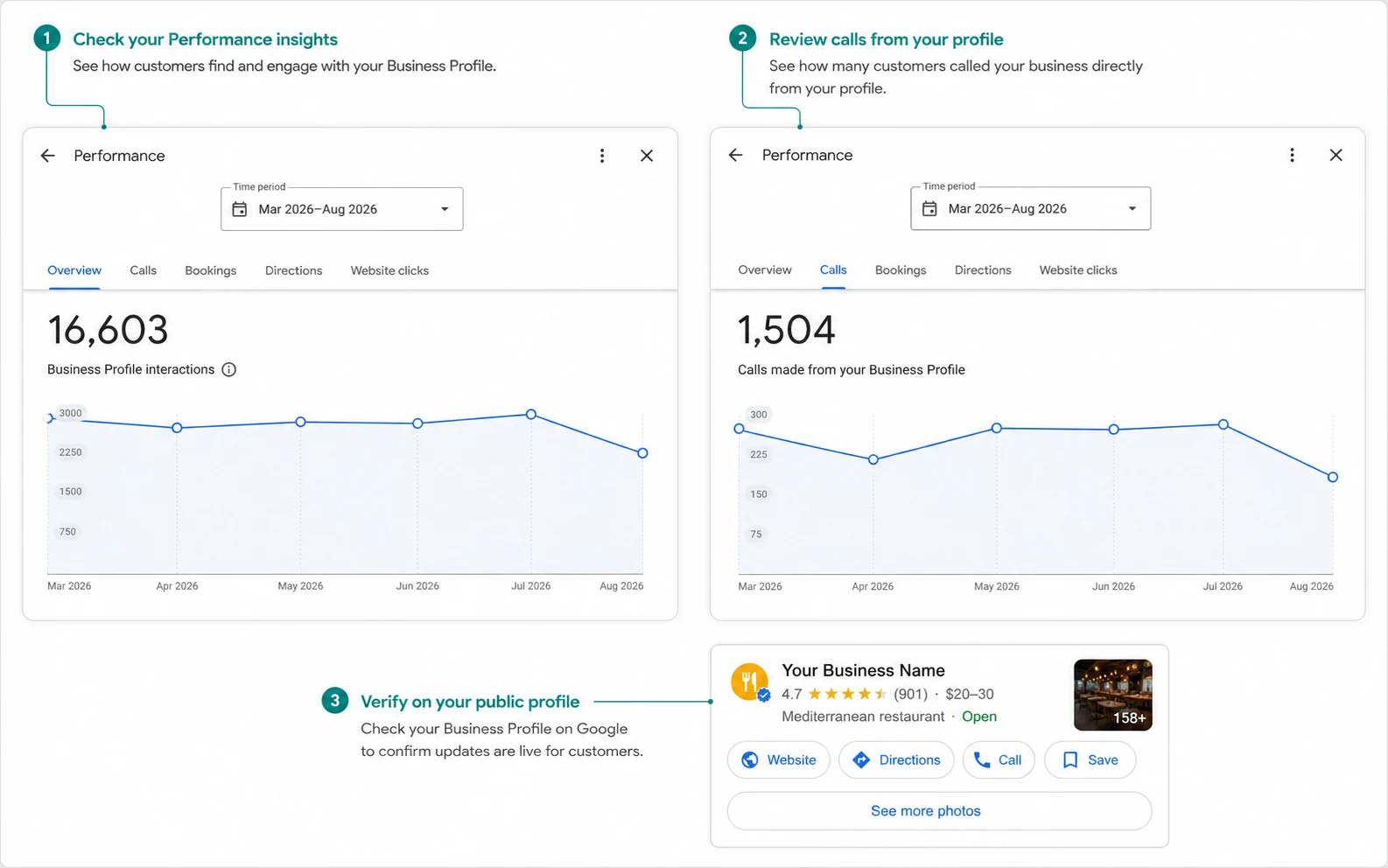
Check Performance after the profile is correct
Business Profile → Performance → choose a date range
Available Performance metrics can include search terms, views, direction requests, call-button clicks, website clicks, messages, bookings, product activity, menu activity, and offer interactions. The exact set depends on the profile.
A marketing dashboard can track exported Business Profile metrics across multiple verified locations. Record a baseline before a meaningful group of changes and compare equivalent periods later. Performance tells you what happened on or through the profile; it does not prove that one individual edit caused a later change.
A website click, a call button click, or a direction request is an interaction, not automatically a lead, customer, or sale. When the business needs website attribution, use a consistently tagged destination and confirm the downstream session and conversion in the analytics system. utm_source=google · utm_medium=organic · utm_campaign=gbp To connect all your data, use a marketing dashboard separating Profile interactions, GA4 sessions, and Search Console clicks.
Business Profile Performance can include activity from both organic results and Google Ads. Treat the report as profile interaction data rather than a clean organic-only attribution report.
If every applicable profile field is accurate, public, tested, and up to date, stop making cosmetic edits simply because performance is disappointing. For local SEO, audit links and citations separately, since Google's prominence factor considers website links. Local SEO extends beyond profile edits because Google also considers website links and prominence. Broader local visibility diagnosis is a separate task.
Update the profile when the business changes, then run a periodic audit
A finished profile should not be edited just to create activity. Update a field when the real business, customer experience, or useful public information changes.
| When to check | What deserves attention |
|---|---|
| After a business change | Address, customer-service model, phone, website, hours, services, products, booking, menu, ordering, accessibility, and other changed facts. |
| Regular operating review | Public information, Google-updated fields, action links, recent media, services, products, review workflow, and Performance. |
| Deeper periodic audit | Primary and additional categories, attributes, service descriptions and prices, location-specific links, social profiles, and editor-versus-public consistency. |
Prevent duplicate profiles
Before creating another location, search Google Maps by both the business name and the exact address.
- If the correct unverified profile exists, claim it instead of creating another.
- If another person controls the verified profile, request access rather than creating a replacement.
- If the same business moved, update the existing profile.
- If the business simply offers several services, keep those services on the existing profile instead of creating one profile per service.
If an accidental duplicate already exists, confirm which record is the legitimate established profile before removing or requesting a merge. Eligible duplicate merges can combine reviews, although review replies may be lost.
For multiple locations, use a controlled bulk workflow
Business Profile Manager is designed for managing multiple profiles. Keep legitimate location differences local while standardizing rules such as naming, category policy, data format, and QA.
- Download the latest location data before editing an old offline spreadsheet.
- Keep each location's store code stable and unique. Store codes connect spreadsheet rows with the intended profiles.
- Change only the fields you intend to update.
- Upload through Business Profile Manager → Add business → Import businesses → Select file.
- Use Preview changes before applying the upload. An unexpected number of new profiles can signal a store-code problem.
- Apply and review changes, warnings, and errors.
- Perform public QA on representative normal locations and every important exception.
Consistency does not mean every profile should be identical. Hours, services, attributes, contact details, media, and action links can legitimately differ by location.
When is a Google Business Profile fully optimized?
| Area | Pass condition |
|---|---|
| Identity | The business name and categories accurately describe the real business. |
| Location | The address, map pin, service area, and storefront/service-area/hybrid setup match real operations. |
| Availability | Regular, special, and applicable service-specific hours are correct. |
| Customer actions | Phone, website, booking, menu, ordering, reservation, and applicable social links work and reach the intended destination. |
| Offerings | Description, attributes, services, and applicable products are accurate and current. |
| Media and updates | Photos, videos, and posts represent the current business and important content is publicly available. |
| Reviews | The official review-request link works and the business has a compliant request, reply, and review-problem process. |
| QA | Important edits are accepted and the public profile matches the intended final information. |
| Measurement | A Performance baseline exists for later comparison without treating normal movement as proof that one edit caused the result. |
A profile that passes this audit is finished from a profile-configuration standpoint. Do not keep changing correct information merely to continue “optimizing” it.