
How to Get Google Support for Your Business Profile
Google Business Profile problems do not all go through the same support channel. A suspension can require an appeal, an ownership conflict has its own request process, a missing review follows a different route from a review you want removed, and ordinary account problems can go through Google Business Profile Help. This guide shows how to choose the right path, contact Google, prepare a useful case, and handle the next step if the first attempt does not solve the problem.
Sign in with the Google Account that manages the affected Business Profile and start from the official Google Business Profile Help Center. Use Contact us when your issue requires direct support, unless Google provides a dedicated process for that problem, such as the Business Profile appeals tool, ownership request, verification workflow, or Reviews Management Tool.
Choose the right Google support route first
The most important step happens before you submit anything. Google separates several Business Profile problems into specialized workflows. Starting with the correct one can keep you from explaining the same problem again after a general support request redirects you elsewhere.
| Your problem | Start here | Why |
|---|---|---|
| Profile suspended or disabled | Business Profile appeals tool | Suspension and reinstatement decisions use Google's appeal process rather than an ordinary support request. |
| Business cannot complete verification | Available verification methods, then support | Google determines which verification methods the profile can use. Contact support if the available methods still do not work. |
| Someone else owns the profile | Request ownership | The existing owner is given an opportunity to approve or deny the request. |
| Profile is marked as a duplicate | Duplicate and ownership troubleshooting | Google allows one Business Profile for each eligible business and has a specific process for duplicate listings. |
| A review violates Google's policies | Reviews Management Tool | The tool lets you report the review, check its status, and submit an eligible one-time appeal. |
| A legitimate customer review disappeared | Missing-review troubleshooting and Contact us | A missing legitimate review is not the same problem as requesting removal of a policy-violating review. |
| Wrong information, unexplained profile behavior, missing content, or another unresolved account problem | Google Business Profile Help | Use the general support workflow when Google does not already provide a dedicated tool for the issue. |
Being sent to an appeal, verification, ownership, or review workflow does not mean Google is refusing support. For some problems, that workflow is the official process that has authority to review the case.
What to prepare before contacting Google
A useful support case identifies one profile, one problem, and the evidence connected to it. Gather the core information before opening the support form so you do not have to reconstruct it while moving through the workflow.
- The Google Account that owns or manages the affected Business Profile.
- The exact public business name and affected location.
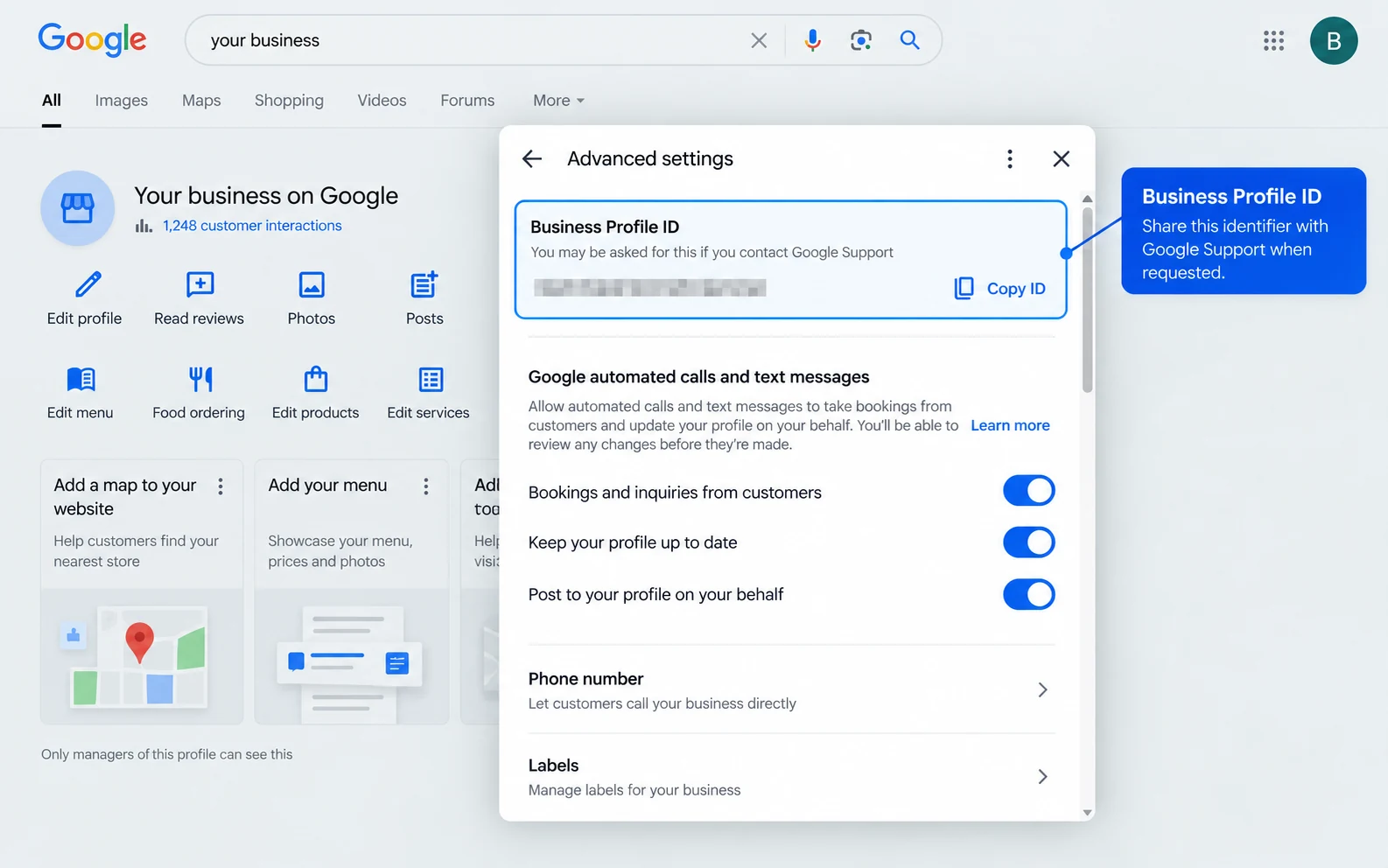
- The Business Profile ID.
- A link to the public profile when it helps identify the listing.
- A short description of the exact problem.
- The result you expected instead.
- Screenshots showing the error, incorrect information, or missing content.
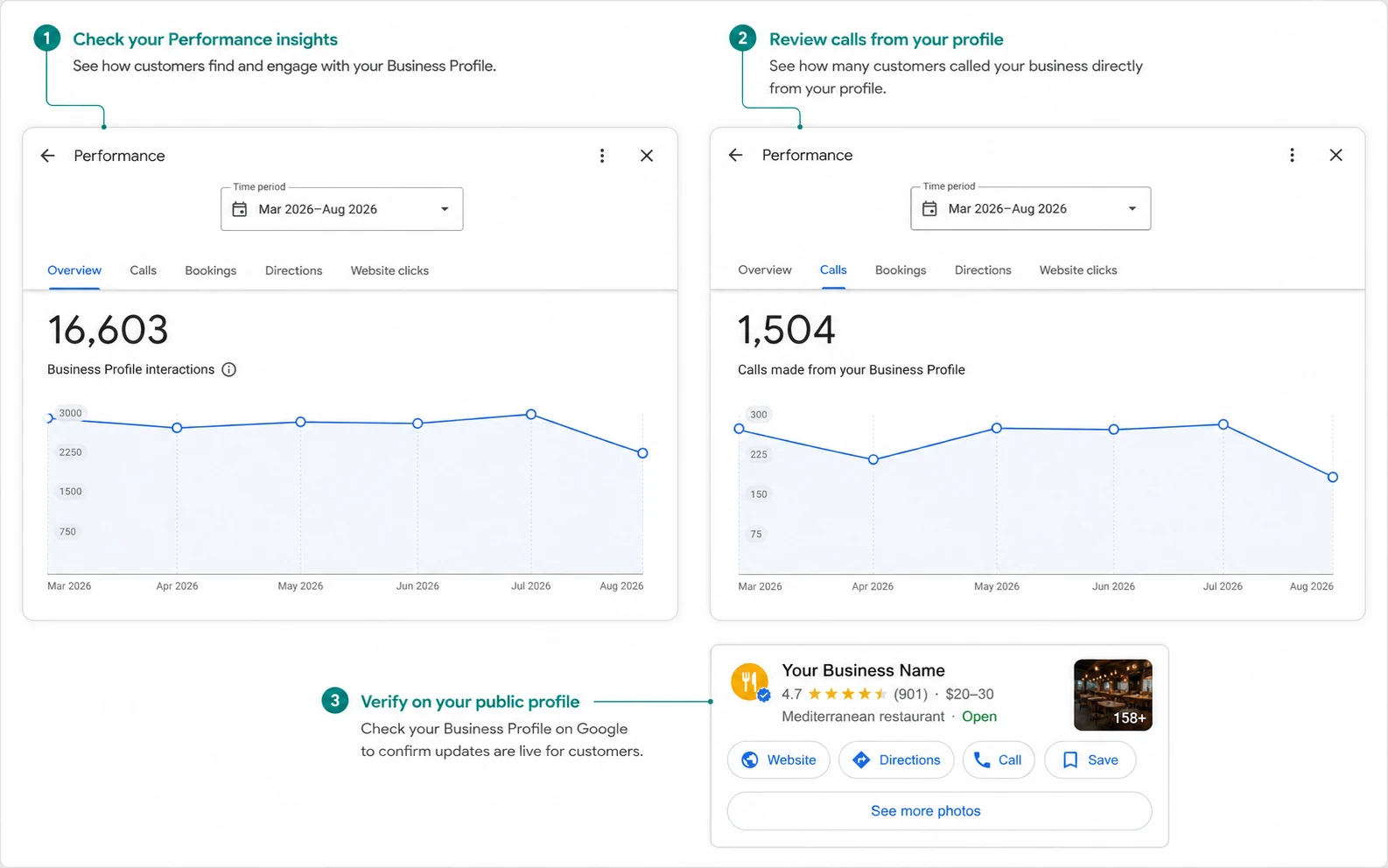
- Relevant dates, such as when an edit reverted or reviews disappeared.
- Check whether local SEO tools or agencies still have profile access before reporting unexplained edits.
- An existing Google Case ID if you already contacted support about the same issue.
You can find the Business Profile ID under Business Profile settings → Advanced settings. It uniquely identifies the listing and can be shared with Google support when needed.
The Business Profile ID identifies the listing. A Case ID identifies a particular support conversation. Keep both when a problem requires follow-up.
How to contact Google Business Profile support step by step
Google's interface can change, so use the labels shown in the live Business Profile Help flow rather than assuming an older screenshot will match every account. The sequence below reflects the support structure while allowing Google to route different problems differently.
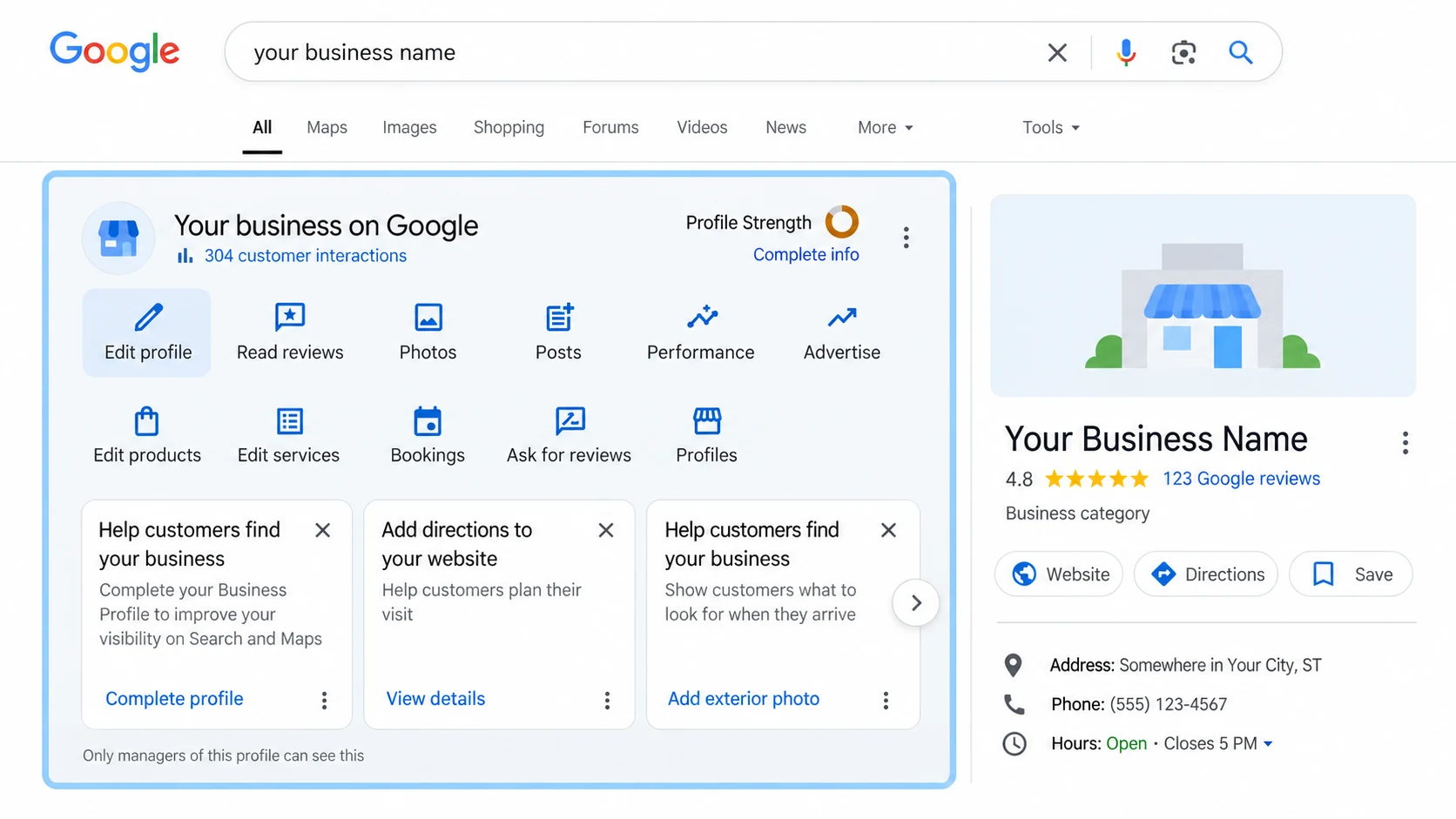
Sign in with the account that manages the affected profile
Start with the Google Account connected to the Business Profile you need help with. If you manage several locations or work with several Google Accounts, confirm the correct account before opening support.
This matters because verification, ownership, appeals, and profile management depend on the account's relationship to the listing.
Open Google Business Profile Help
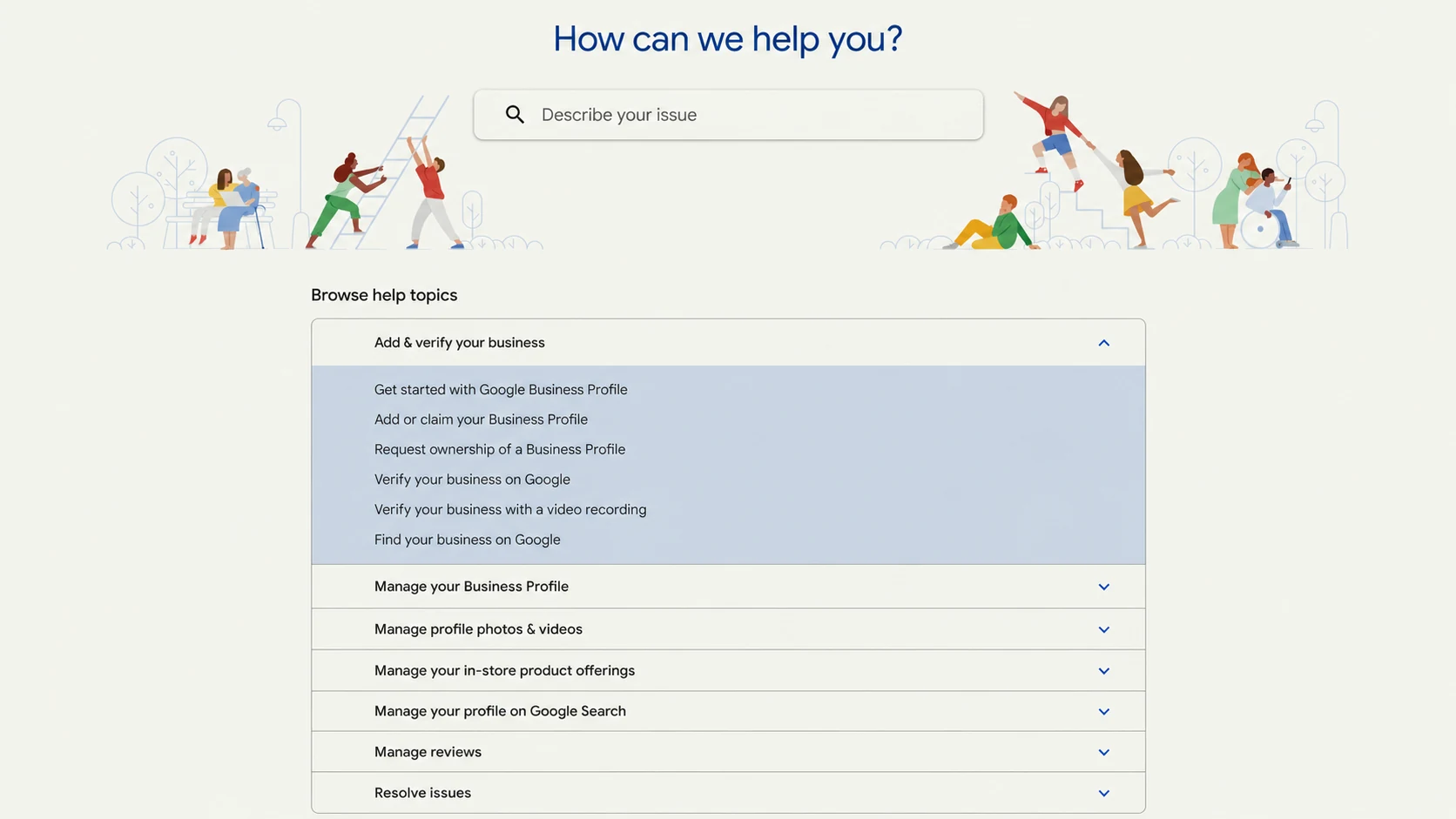
The official Business Profile Help Center includes a Need more help? area with both the Help Community and Contact us. Use that official entry point rather than a support page or phone number copied from an unrelated website.
Describe one specific problem
Give Google a short description of what is failing. Useful descriptions sound like website edit keeps reverting, unable to complete verification, or legitimate reviews are missing.
Avoid combining several unrelated problems into one request. The clearer the issue is, the easier it is to identify whether Google has a dedicated process for it.
“Our verified Business Profile keeps reverting to an old website URL. We saved the correct location URL twice, but the public profile returned to the previous address. We have the Business Profile ID and screenshots showing the editor and public listing.”
Review the route Google recommends
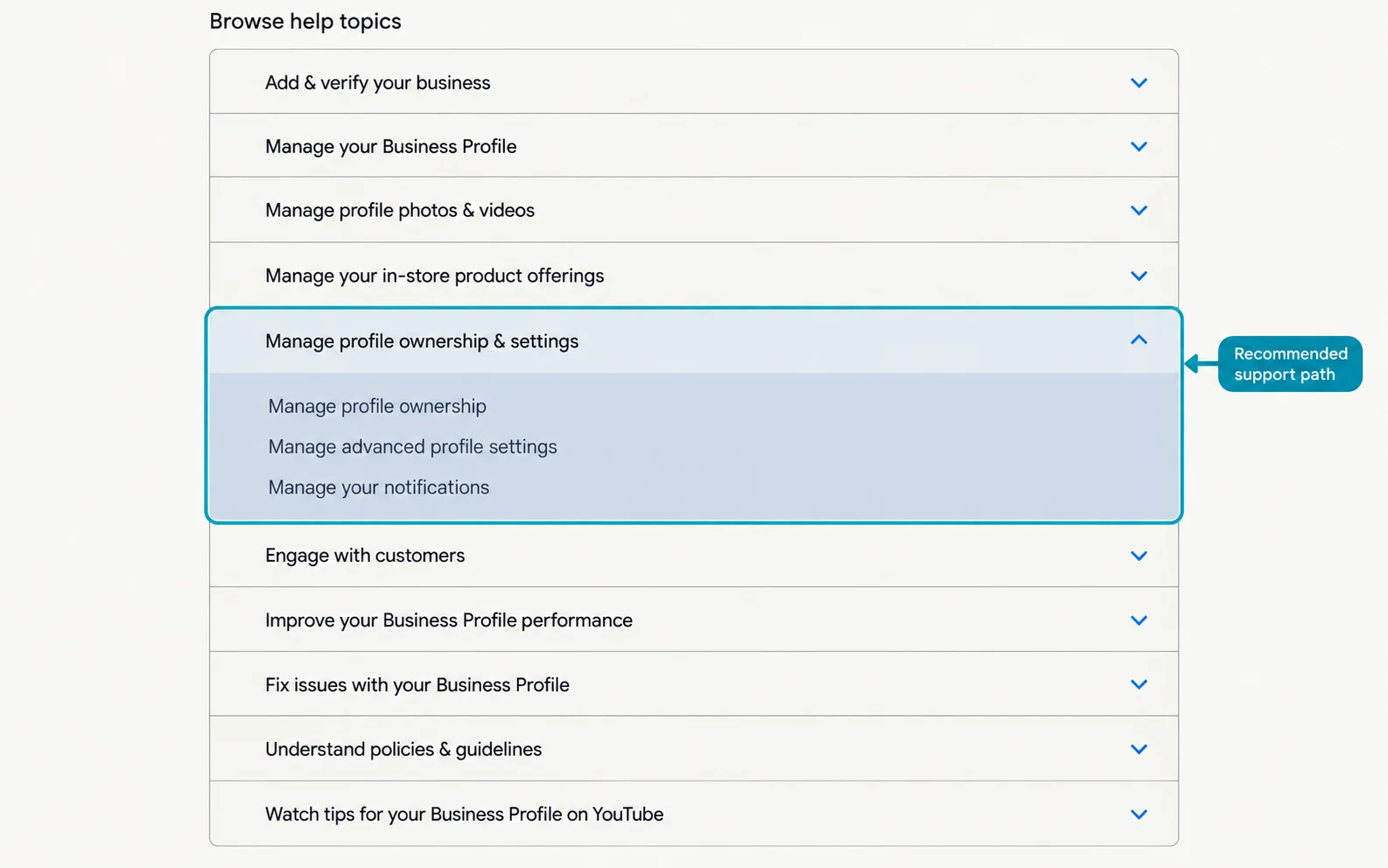
Google may present a help article, troubleshooting process, appeal tool, review tool, ownership workflow, or another issue-specific path before direct contact options appear.
Check whether that route actually matches the problem. If it does, use it. Trying to force a suspension or ownership dispute into a generic support ticket usually adds an unnecessary handoff.
Use the contact method Google makes available
Google Business Profile does not publish a general public support phone number that businesses can dial. You cannot call a public Google Business Profile help line to reach support. Start from the official Contact us workflow instead.
If phone support is available for your case, Google may show a callback or contact option inside that workflow. In that situation, Google calls you; you do not dial a public Business Profile support number. Do not use an unrelated phone number found on another website as a shortcut to Google support.
Other contact options, such as live chat or email, may appear depending on the account, issue, location, and current support availability. If both chat and email are offered, choose based on the case. Chat can work well for a straightforward question that can be clarified in real time. Email can be more practical when the problem requires screenshots, documents, a written history, or later follow-up.
Google also warns businesses about callers who impersonate Google or demand payment. A legitimate Google call should not require you to pay to keep, verify, or reinstate your Business Profile, and you should never provide an account password or other sensitive sign-in information to an unexpected caller.
Submit the case and keep the support record
Before sending the request, confirm that the case refers to the right profile, explains the current problem, and includes only evidence relevant to that issue.
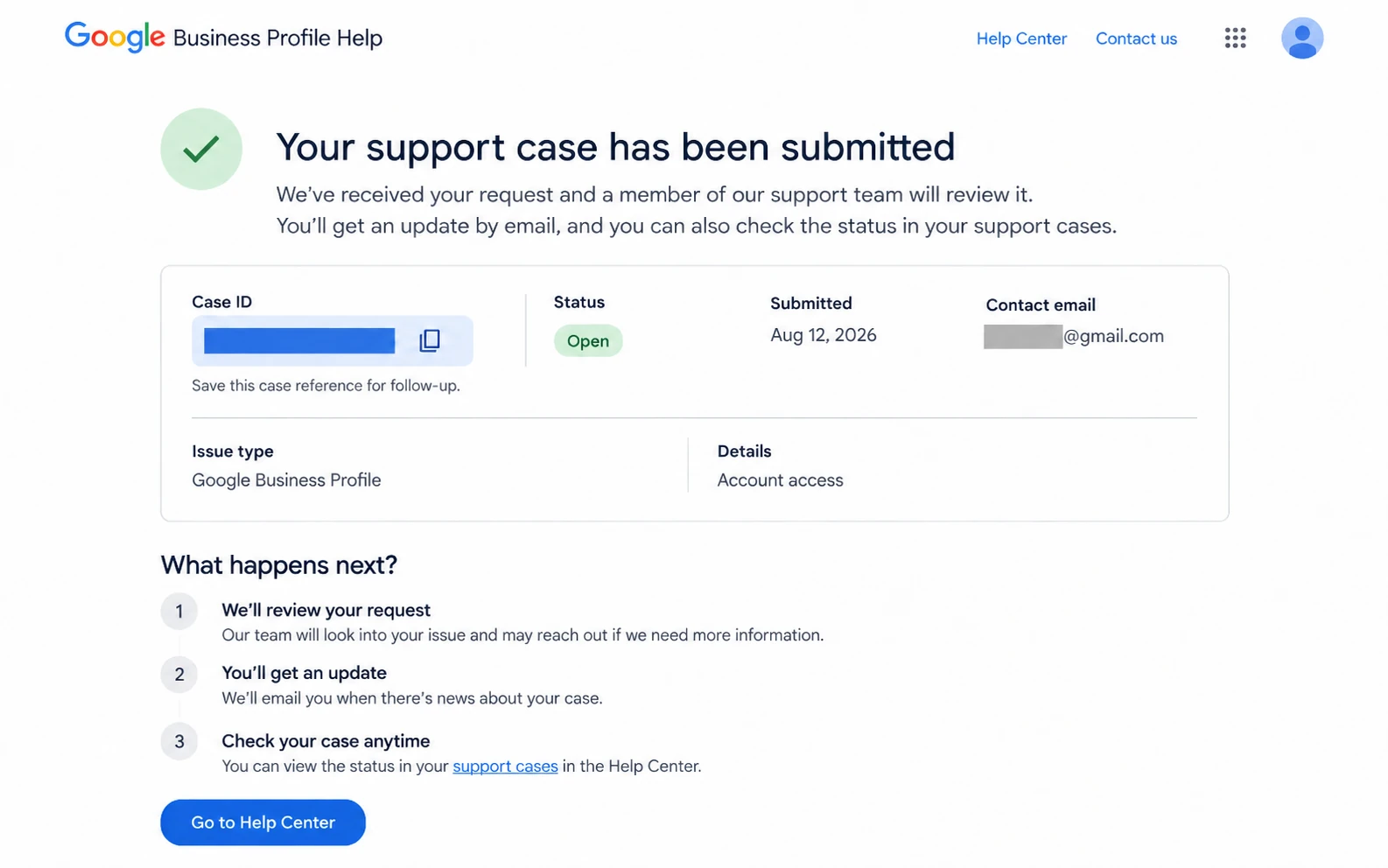
Save the confirmation email and any Case ID Google provides. If support later asks for more information, keep the conversation tied to the same case whenever the existing support channel allows it.
What to do when Google support does not solve the problem
A submitted Business Profile support case can receive a reply from Google's support team, but not every case follows the same route or timetable. Google's guidance for agencies says the Case ID appears in the subject line of the support team's reply. Keep that message because it connects later communication to the same problem.
How to check the status of a general support case
For an ordinary support request, use the latest Google support message and its Case ID as the case record. Check the most recent message for a decision, a request for more information, or a next action.
If the issue uses a specialized Google tool, check the status there instead. For example, the Reviews Management Tool shows the status of reported reviews, while suspension appeals use their own appeal workflow.
If a general case remains unresolved and the existing message cannot accept a reply, return to Contact us and include the existing Case ID. Google's Business Profile guidance for agencies tells users to include that ID when a new request concerns a current support case. It also warns against duplicate requests because repeated cases can create confusion in the support conversation.
Google's main Business Profile Help Center does not publish one universal response deadline for every ordinary support case. The next step should be based on the case status and Google's instructions, not an assumed response-time guarantee.
If the support form keeps directing you to articles without a usable next action, the Business Profile Help Community can help you check whether you are using the correct official workflow. Keep private evidence out of the public forum.
Keep a one-case support ledger for complicated problems
For a case that moves through several stages, keep a short record outside Google's support form. This is not a Google requirement. It is a simple way to avoid losing track of what Google has already reviewed.
A note such as Appeal: Not Approved; additional review available is much more useful than simply writing profile suspended. It tells you what Google has already decided and what action is actually available next.
When a suspension needs an appeal instead of general support
If Google suspends or disables a Business Profile, start with the Business Profile appeals tool. Before submitting, check the profile against Google's Business Profile guidelines and prepare evidence that shows the business is legitimate and that its profile information is accurate.
Google may let you submit documents such as business registration, licenses, tax certificates, or business utility bills. The business name and address on the supporting evidence should match the profile. If you open the evidence form, Google requires the evidence to be submitted within 60 minutes for it to be attached to the appeal.
Google specifically instructs businesses not to create another Business Profile for the same business while the appeal is under review.
If the suspension appeal is denied or will not continue
The appeals tool shows the current appeal state. Google uses statuses including Submitted, Approved, Not Approved, Can't be appealed, and Eligible for appeal.
A Not Approved result can sometimes qualify for an additional review. When that option is available, use it to provide relevant evidence that was not included with the original appeal. Do not keep sending copies of the same appeal while another decision is still pending.
If the problem is connected to a restriction on the Google Account itself, address that account restriction before treating the Business Profile suspension as a standalone issue.
Review problems: removal and missing reviews use different routes
If you want Google to remove a policy-violating review
Report the review from the Business Profile or use the Reviews Management Tool. Google removes reviews for policy violations, not simply because a business disagrees with a negative customer review.
The Reviews Management Tool lets you check the status of a reported review. If Google finds no policy violation and the review is eligible, you can submit a one-time appeal through the tool.
If a legitimate customer review disappeared
Do not use the review-removal appeal merely because a legitimate review is missing. Reviews can be delayed while Google's systems check them against policy, and reviews from recently merged profiles can take additional time to appear. Reviews removed for policy violations are not restored, and Google can temporarily restrict user-created content for some profiles or categories.
Google specifically advises businesses to contact support when reviews disappear after a suspended Business Profile has been reinstated. If Google's listed reasons do not explain the missing reviews, use the Contact us option from the missing-or-delayed-reviews guidance and identify the affected profile.
Keep the Business Profile ID, an estimate of how many reviews are missing, the period when they disappeared, and screenshots of reviews that previously appeared when you have them. Store that evidence with the private support case rather than a public Community post.
What to do when verification is the problem
Businesses cannot freely choose any verification method they want. Google determines which methods are available and can base that decision on factors such as the business type, public information, region, or business hours. In some cases, Google can require more than one verification method.
Use the methods displayed on the profile. If the methods Google provides still do not let you verify the business, use the Business Profile support workflow.
When verification gives you no usable next step
If Get verified appears again after a previous attempt, the profile has not completed verification. Select Get verified and follow the methods currently displayed. If several methods are available, you can try another option from that list.
If a video recording was rejected and the profile shows Review issues, open that notice and follow the instructions before trying again. Google can also request re-verification after important profile details change.
A live video call may appear as a verification option for some businesses. When available, the verification process guides the business into contact with a support representative. The option is not available to every profile.
Keep verification codes, one-time passwords, PINs, login information, and private business documents out of public forum posts and screenshots. Google does not require businesses to pay to maintain, verify, or reinstate a Business Profile.
What to do when someone else owns your Business Profile
If a verified Business Profile for your business is controlled by another account, start with Google's ownership request instead of opening a duplicate listing.
For a storefront or hybrid business, search for the existing profile and select Request access. The current owner receives the request and normally has three days to respond. You can check the request from the Business Profile or the confirmation email.
If the ownership request is denied or ignored
If the owner denies the request, Google sends a rejection email. You can still suggest an edit to the profile and may also have an option to appeal the ownership decision.
If the owner does not respond within three days, Google may give you an option to claim the profile. Open the original confirmation email, select View request, then Verify if that option appears. You can also sign into the Business Profile and look for a Claim or Verify option. The ability to claim an unresponsive owner's profile is not available in every case.
Service-area businesses without a physical storefront can use a different ownership route. Follow Google's current ownership guidance and the support options presented for the listing.
Google permits one Business Profile for each eligible business. A profile marked as a duplicate follows duplicate-profile and ownership troubleshooting rather than a normal ownership transfer.
Should you use the Google Business Profile Help Community?
The Help Community and direct support serve different purposes. The Community is useful when you need help understanding a policy, identifying the correct Google workflow, or interpreting an error that does not expose private account information. Google's Help Center lists the Community separately from Contact us.
Use an official support, appeal, verification, ownership, or review workflow when Google needs to inspect account-specific information or make a decision that a Community member cannot make.
| Good use of the Help Community | Use Google's official case process instead |
|---|---|
| Understanding which Business Profile policy applies | Appealing a suspension or restriction |
| Finding the correct troubleshooting route | Submitting private verification or business evidence |
| Interpreting a confusing public error message | Resolving an account-specific ownership or access decision |
| Checking whether your next step matches Google's current workflow | Requesting action that only Google can perform |
Never post business licenses, tax documents, verification codes, passwords, one-time passwords, or other confidential account information in the public Community.
Is Google Business Profile support free?
Google Business Profile itself can be used at no charge. Google also warns businesses that it does not charge for help with the service and will not require payment to keep a profile active, verify it, or reinstate it.
A third-party consultant or agency can still charge for its own work. That fee is for services such as profile management, troubleshooting, administration, or consulting. It is not a Google support fee. Marketing a small business through an agency does not require transferring Business Profile ownership.
| Need | Third-party provider | |
|---|---|---|
| Suspension decision | Google controls the appeal and reinstatement decision | Can help organize evidence but cannot replace Google's decision |
| Verification or ownership action | Google controls the available workflow | Can help prepare information and guide the process |
| Account-specific Google problem | Google may need to investigate or make the change | Can document and troubleshoot the issue |
| Ongoing Business Profile management | The business can manage the profile with Google's tools | Can provide ongoing management for a disclosed fee |
Google requires third-party Business Profile managers to be transparent about their fees and says the business should retain ownership or co-ownership of its profile. Avoid providers that claim you must pay Google to remain listed, guarantee top Google placement, or present themselves as Google support when they are not. Local SEO cannot buy better placement in Google Search or Maps. When optimizing Google Business profile, complete and accurate profile details can improve local visibility.
Paying a third party can make sense when you want work beyond contacting support, such as managing many locations or handling ongoing profile administration. It is not necessary simply to gain access to Google's official verification, appeal, ownership, or support processes.
How should you interpret reviews of Google Business Profile support?
Google's Business Profile Help Center does not provide a customer rating for its support service. You can find individual support experiences in the Google Business Profile Help Community, but Google warns on Community pages that Community content may not be verified or up to date.
Treat those posts as individual experiences rather than evidence of a normal response time, success rate, or guaranteed outcome. A Community post can help you recognize a similar problem, but confirm the recommended action against Google's current Help Center, appeals tool, Reviews Management Tool, verification workflow, or other official process before changing the profile.
Google Business Profile support: strengths and limitations
| Area | Strength or limitation | What it means for the business |
|---|---|---|
| Account-specific decisions | Strength | Google's official workflows can handle decisions and actions that a consultant or Community member cannot make for the account. |
| Specialized status tools | Strength | Some problems provide a defined place to check progress, such as reported reviews in the Reviews Management Tool or a suspension in the appeals workflow. |
| General case follow-up | Limitation | Ordinary support cases do not all use the same status tool. Keep the support message and Case ID so you can follow the active case without starting over. |
| Response timing | Limitation | Google does not publish one universal response deadline for every ordinary Business Profile support request, so do not plan around a guaranteed 24-, 48-, or 72-hour response. |
| Phone access | Limitation | There is no general public Google Business Profile support number to dial. If a callback option is available, it is offered through Google's current support workflow and Google contacts you. |
The practical advantage of official Google support is authority. When Google must review account information or make a platform-level decision, the official process is the route that can act on it. The tradeoff is that support is split across different workflows, so the way you track a suspension, reported review, ownership issue, or ordinary support case can differ.
A support request should make the problem easy to identify
You do not need to write a long history of the account. A useful case gives Google the information needed to identify the listing, understand what is wrong, and see evidence of the problem.
Business: Example Company, Denver location
Business Profile ID: [ID]
Issue: The website field keeps reverting to an old URL.
Expected result: The public profile should use the current location page.
What happened: The correct URL was saved twice, but the listing returned to the previous URL.
Evidence: Screenshots of the editor, public profile, and current business website.
Existing Case ID: [Include only if this is a follow-up]
Keep sensitive financial, tax, identity, and account documents inside the private Google workflow that specifically requests them. Public screenshots and Community posts should contain only information you are comfortable making public.
Start with the workflow that can actually resolve the problem
Google Business Profile support is easier to navigate when you identify the problem before trying to contact someone. Suspensions belong in the appeals tool. Ownership conflicts begin with an ownership request. Verification follows the methods Google displays. Policy-violating reviews and missing legitimate reviews require different processes.
For other unresolved Business Profile issues, use the official Help Center and Contact us, keep the Business Profile ID and evidence organized, and preserve the Case ID if the issue continues.
Remember that Google Business Profile does not have a general public support number you can dial. When a phone option is available, it comes through Google's support workflow as a callback or contact option. Do not substitute an unrelated phone number found online for that process.
A clean support trail gives Google the clearest case to review: one profile, one issue, the correct workflow, and enough evidence to show what needs to be fixed.